
ExpenseSumo is built as a progressive web app, so you can install it straight from your browser. There is no app store and nothing to download. Once installed, it opens full screen with its own icon and feels exactly like a native app, because it was built to work that way. Installing takes under a minute, and we recommend Chrome on every device for the best experience.
Why Install ExpenseSumo on Your Home Screen?
True native app feel: ExpenseSumo was designed as an app from day one, so it opens full screen with no browser bars in the way.
One tap away: its own icon sits on your home screen, right where you log expenses.
Almost zero storage: it uses a fraction of the space a typical app download needs.
Always up to date: you get the latest version automatically, with no app store updates.
Install on iPhone or iPad
Open Chrome on your iPhone or iPad and follow these steps.
Step 1: Open ExpenseSumo in Chrome
Go to expensesumo.com and sign in to your account.
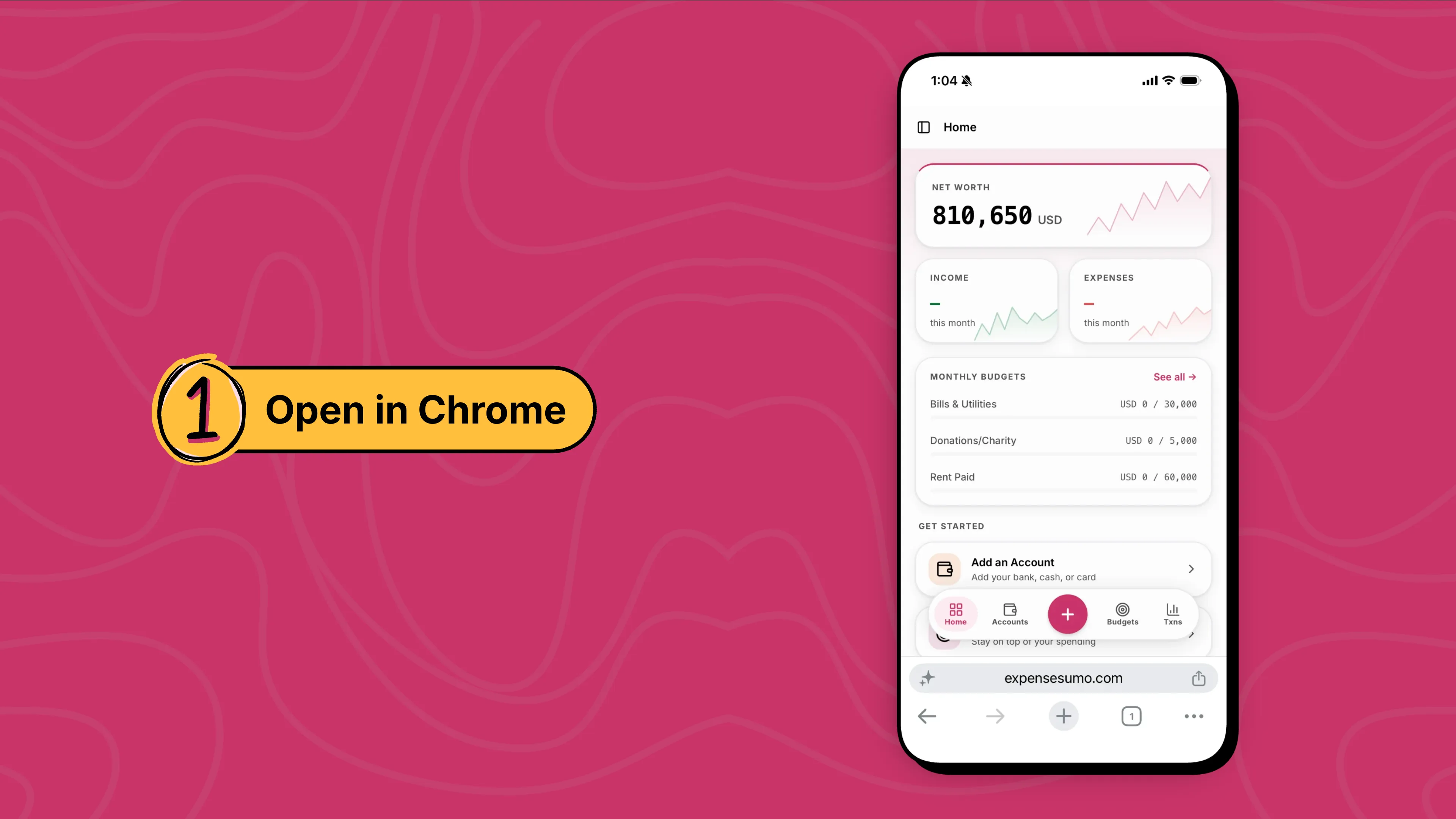
Step 2: Tap the Share icon
It is the square icon with an arrow pointing up, next to the address bar.
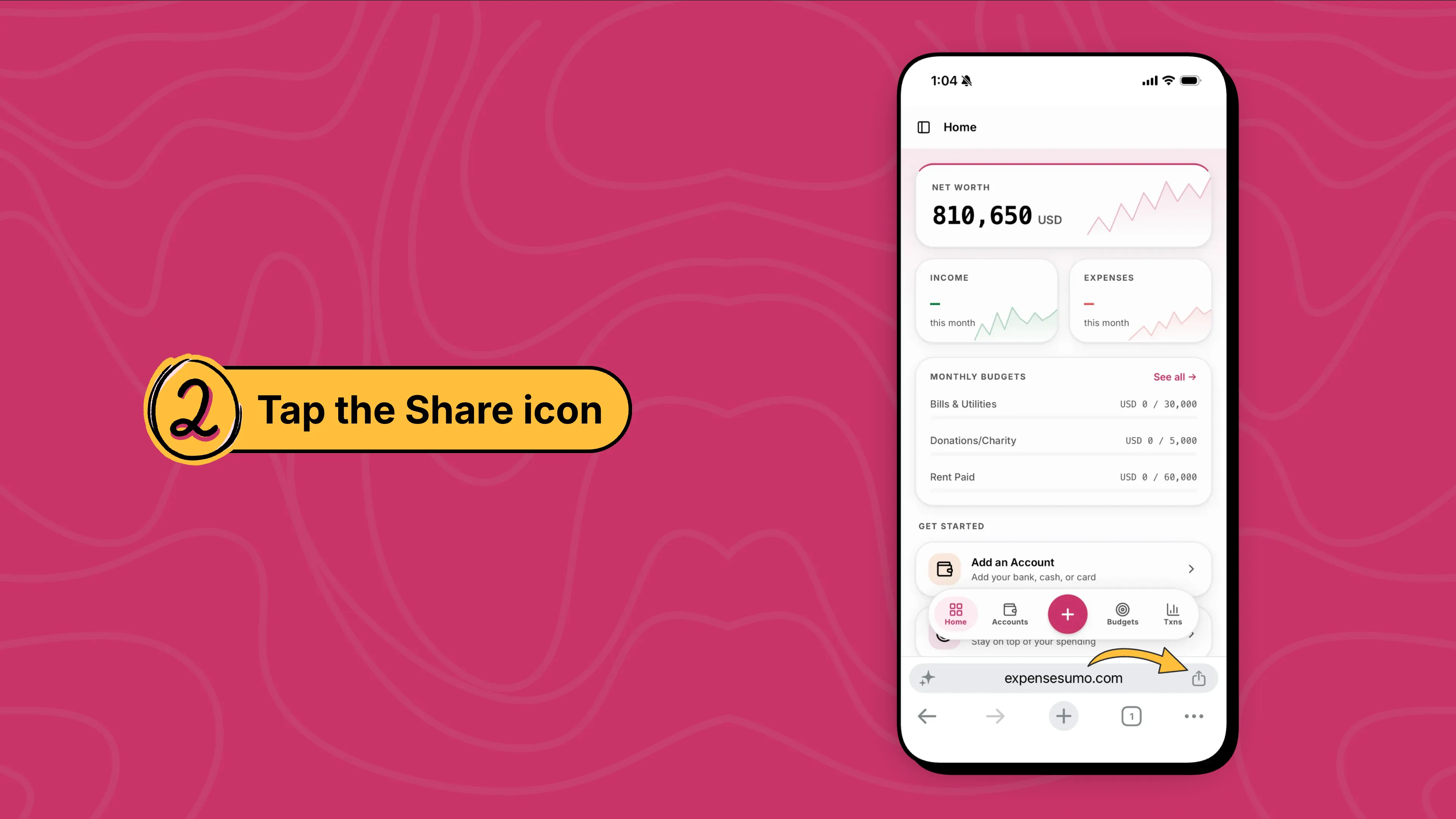
Step 3: Tap "Add to Home Screen"
Scroll down the menu until you see Add to Home Screen, then tap it.
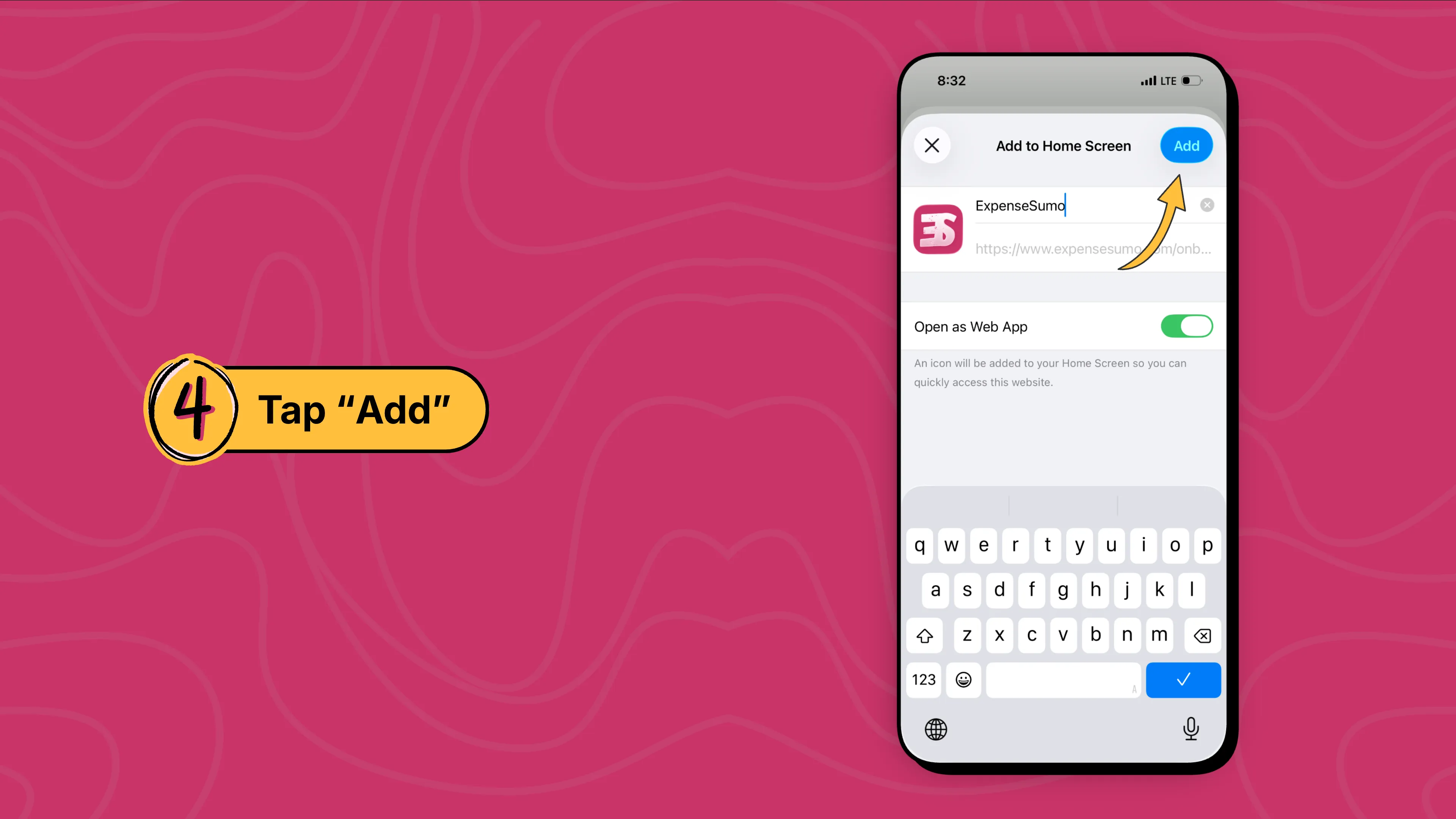
Step 4: Tap "Add"
Confirm the name and tap Add. The ExpenseSumo icon now appears on your home screen.
Install on Android
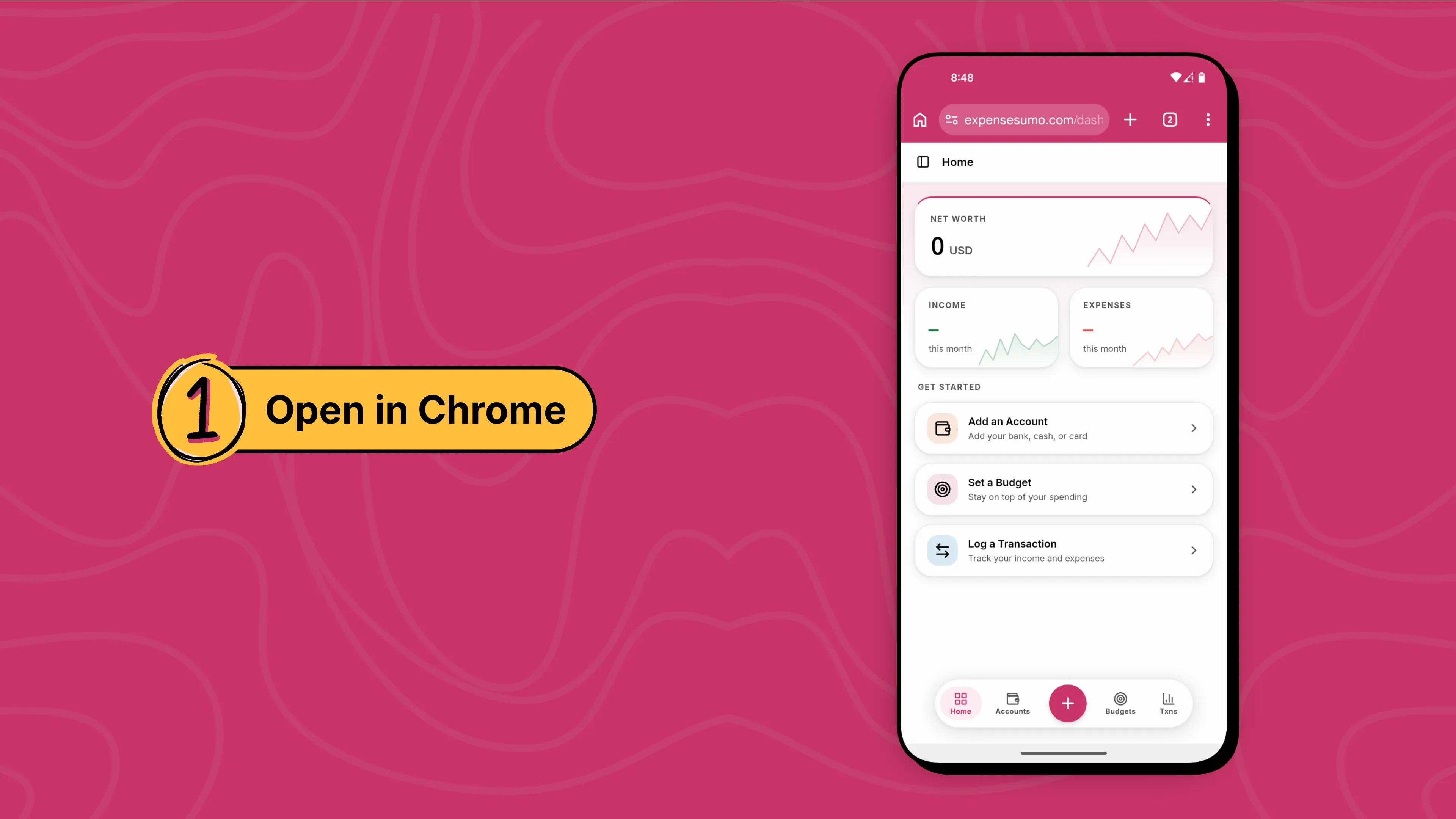
Open Chrome on your Android phone or tablet and follow these steps.
Step 1: Open ExpenseSumo in Chrome
Go to expensesumo.com and sign in to your account.
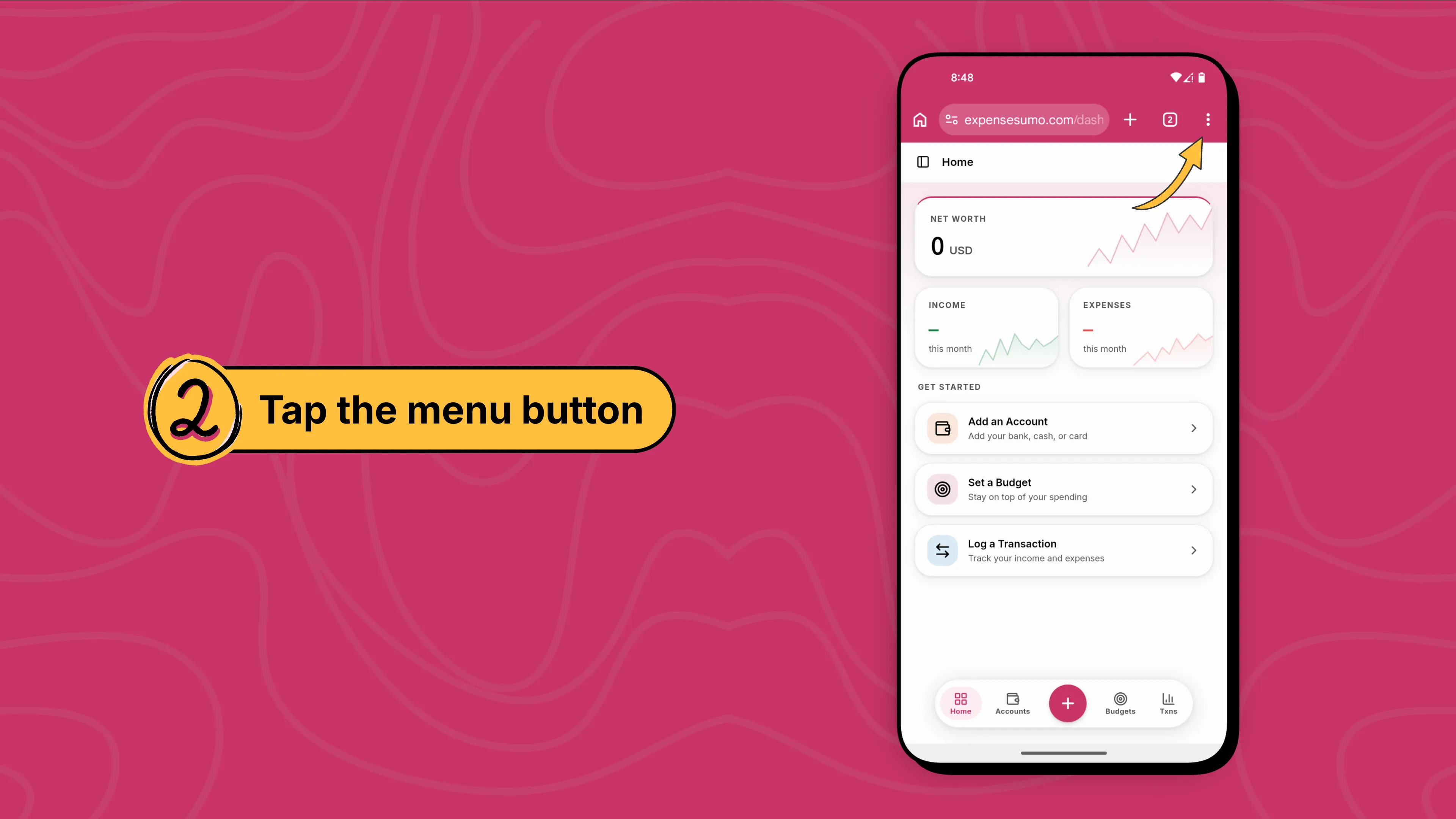
Step 2: Tap the menu button
It is the button with three dots in the top right corner of Chrome.
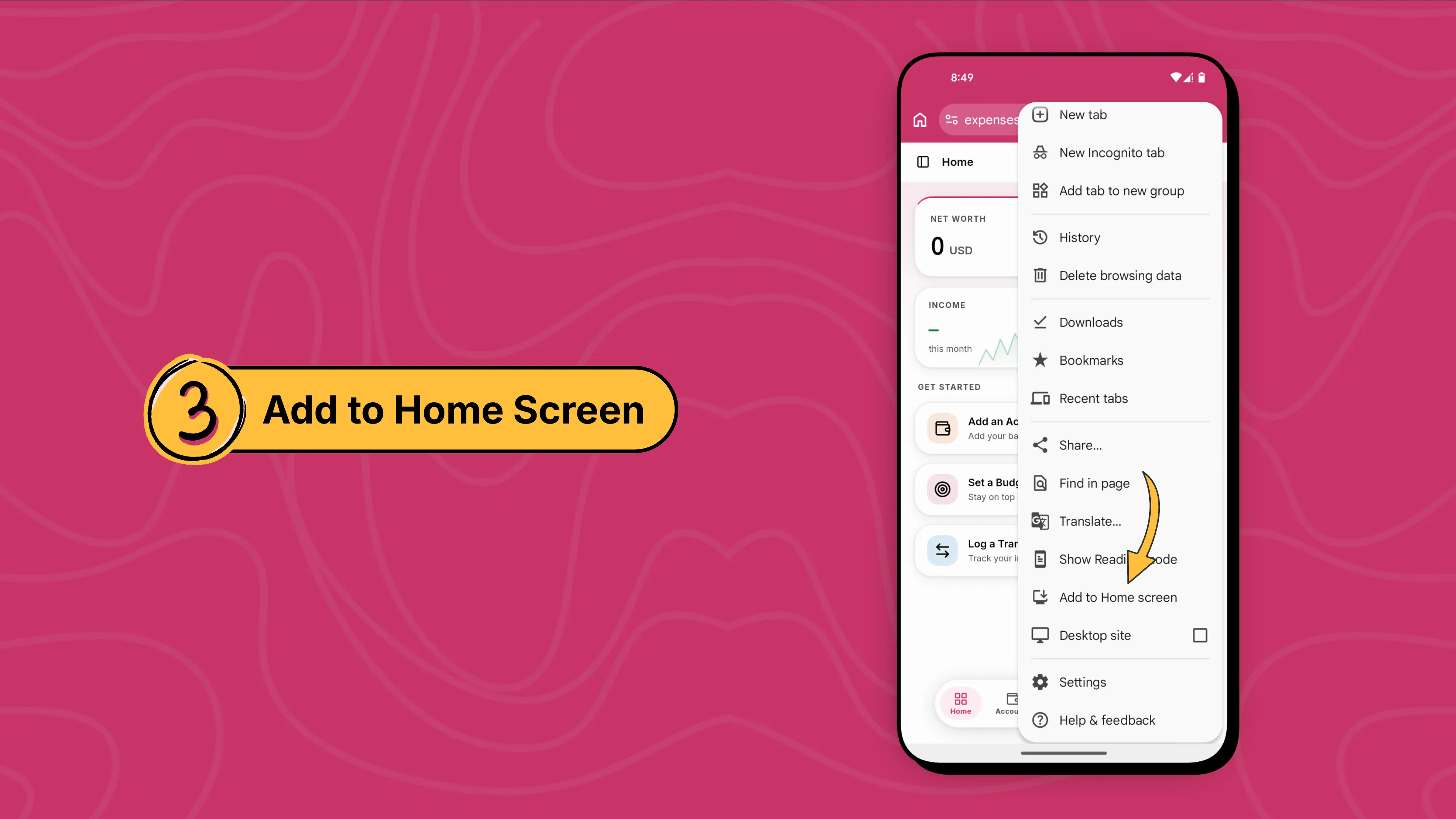
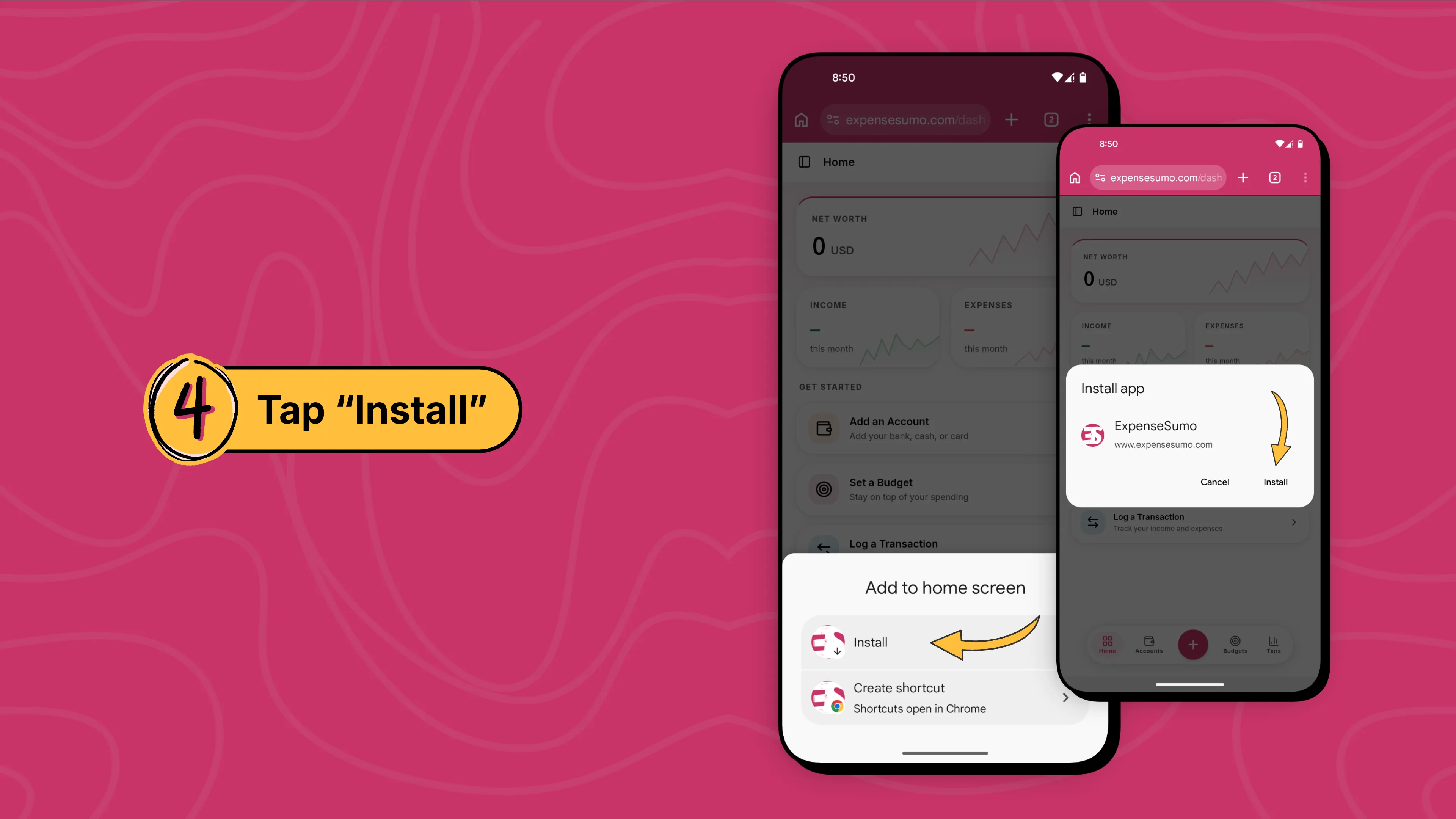
Step 3: Tap "Add to Home screen"
Some devices show Install app instead. Both do the same thing.
Step 4: Tap "Install"
Confirm, and the ExpenseSumo icon appears on your home screen and in your app drawer.
Install on Desktop
Open Chrome on your Windows, Mac or Linux computer and follow these steps.
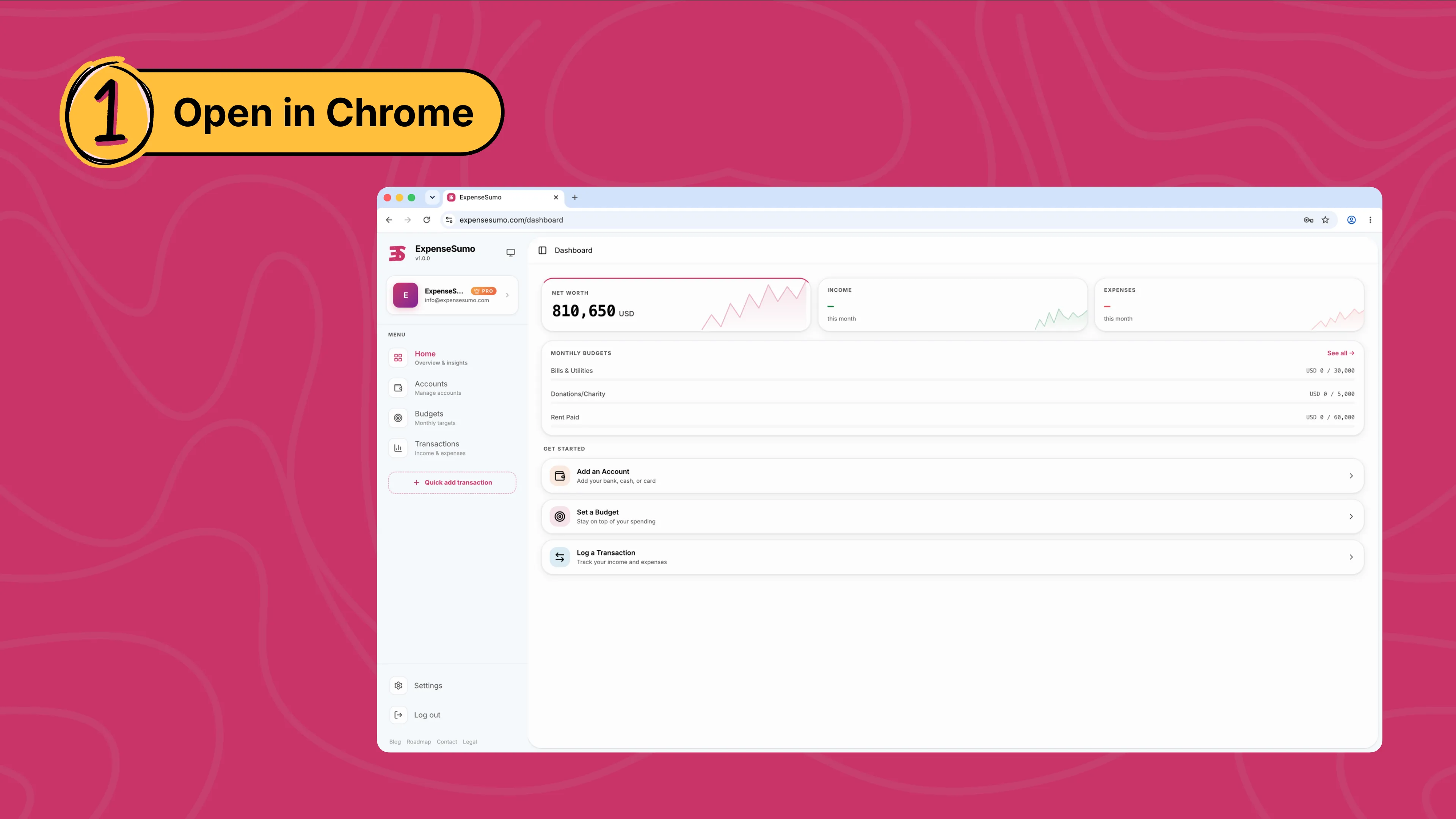
Step 1: Open ExpenseSumo in Chrome
Go to expensesumo.com and sign in to your account.
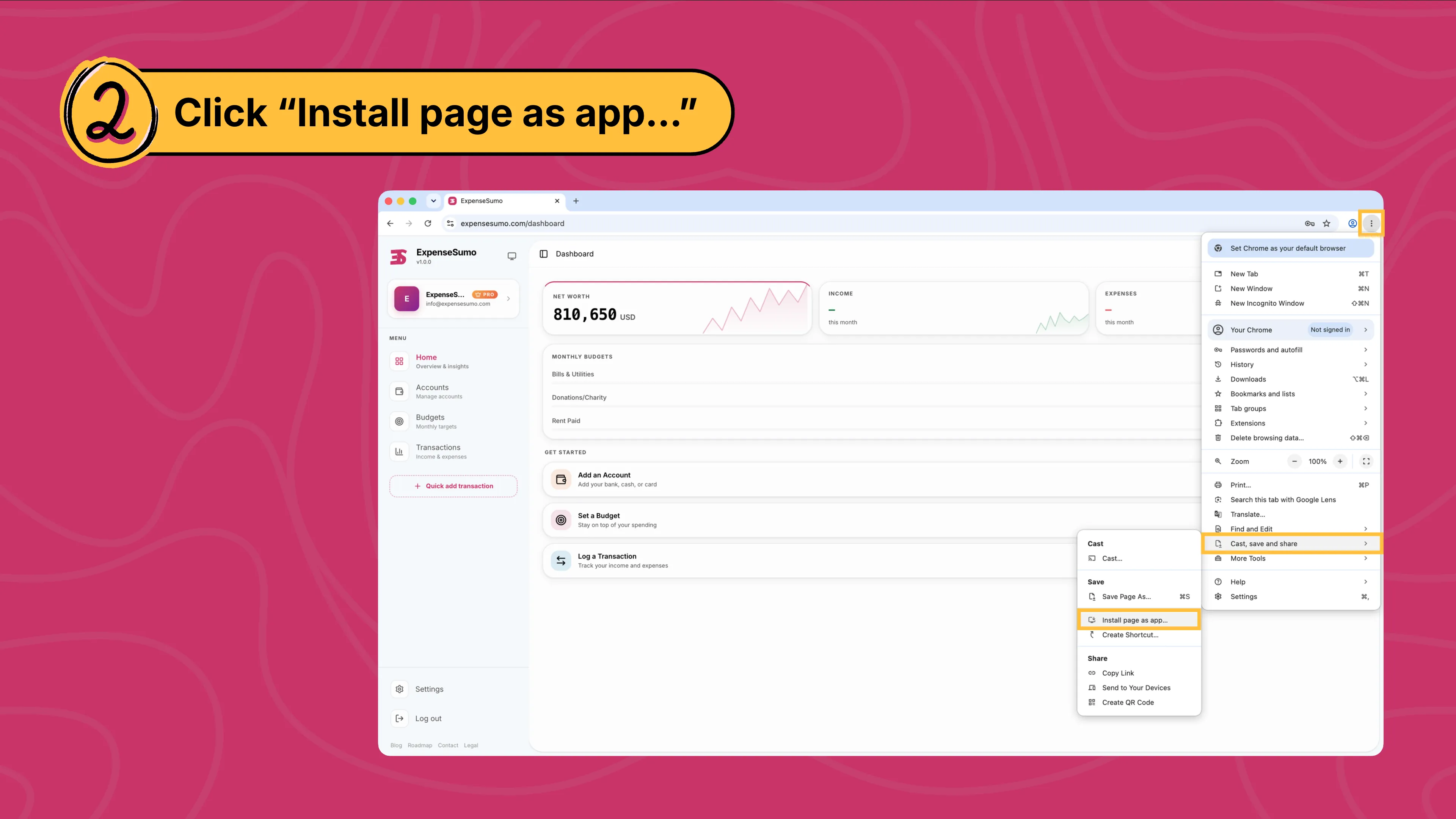
Step 2: Click the install icon in the address bar
Look for the small screen icon with a down arrow at the right end of the address bar. If you do not see it, click the menu button with three dots, choose Cast, save and share, then click Install page as app.
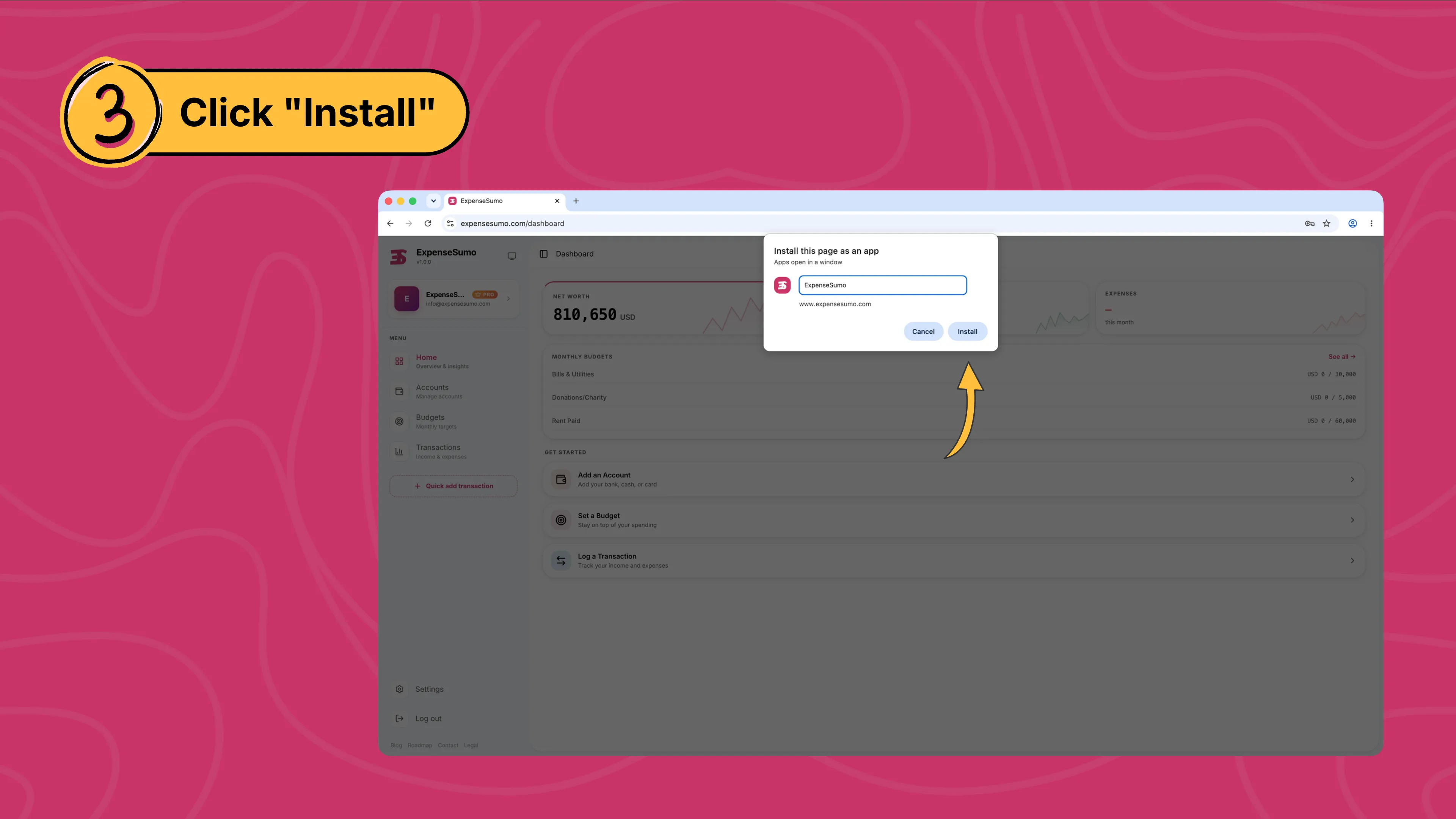
Step 3: Click "Install"
ExpenseSumo opens in its own window and is added to your apps, ready to launch like any other program.
Frequently Asked Questions
Is the installed app different from the website?
No, it is the same ExpenseSumo with the same data and features. Installing gives it its own icon and a full screen view without browser bars, so it feels like a native app.
Does it take up storage on my device?
Almost none. A progressive web app stores only the icon and a small amount of data, while a typical app download uses 50 MB or more.
Do I need to update the app?
No. You always get the latest version of ExpenseSumo automatically, with nothing to update through an app store.
How do I remove it?
Press and hold the icon and choose Remove on iPhone or Uninstall on Android, just like any other app. On desktop, open the app menu inside the ExpenseSumo window and choose Uninstall. Your account and data stay safe either way.